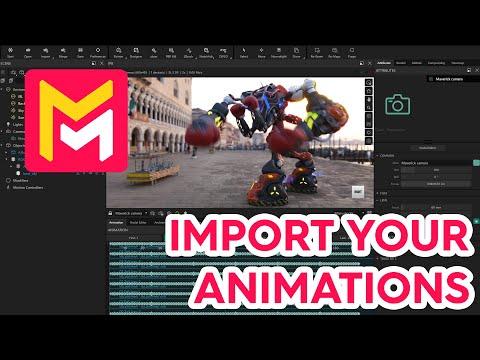
Import your Animations
Summary
This tutorial video for Maverick Render demonstrates how to import animated 3D models created in external software like Blender. It highlights the process using three different file formats: USD, GB/GLTF, and FBX, detailing the specific export settings and import steps within Maverick for each. The video emphasizes the benefits and workflow differences of these formats, including considerations for file size and animation playback. Furthermore, it shows how to enhance imported animations with features like motion blur and combine existing keyframes with new motion controller animations directly within Maverick Render.
F.A.Q.
-
What is the recommended format for importing animations into Maverick Render and why? The recommended format for importing animations into Maverick Render is USD (Universal Scene Description). This is because USD is becoming an industry standard for 3D content creation and exchange, offering efficient and reliable workflows for animation import.
-
How do you export an animation from Blender in USD format for use in Maverick Render? To export an animation from Blender in USD format, you need to select the USD format during export and ensure that the "animation" box is checked. The other export parameters can generally be left as default.
-
What are the configuration options to consider when importing a USD file into Maverick Render? When importing a USD file into Maverick Render, you will need to configure a few options. First, check that the model's flip is correct. Then, set the appropriate scale for the model. You will also need to choose the environment (ambience) into which you want to import the model.
-
What are the alternative animation export formats supported by Maverick Render, besides USD? Besides USD, Maverick Render also supports importing animations using the GLB (or glTF) and FBX formats. GLB is a widely used format that can embed textures, while FBX is another common format for 3D data exchange.
-
What is important to note when importing a GLB or glTF file into Maverick Render, particularly regarding file size? When importing a GLB or glTF file into Maverick Render, it's important to note that these formats, especially GLB with embedded textures, can result in considerably larger file sizes compared to USD. As with USD, you'll need to check the flip and scale during import.
-
How do you adjust the scale when importing an FBX file into Maverick Render? When importing an FBX file into Maverick Render, you may need to specifically select "centimeters" as the scale unit during the import process. This is because the internal scale of the FBX file might differ from the default import settings.
-
How can you ensure smooth playback of imported animations in Maverick Render, especially when scrubbing through the timeline? To ensure smooth playback and see the full animation when scrubbing through the timeline in Maverick Render, you may need to switch to "full scrubbing mode" in the animation panel. This is particularly important when dealing with certain imported formats where the default scrubbing might not show the complete movement.
-
Can you combine imported animations with new movements or controllers added directly in Maverick Render? Yes, you can combine imported animations with new movements or motion controllers created within Maverick Render. You can add a motion controller to your imported assembly and define additional translations or other movements, and these will be combined with the existing animation data from the imported file.