Depth of Field
Summary
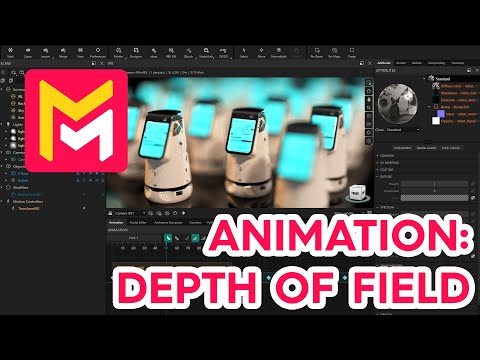
This YouTube video tutorial for Maverick Render guides viewers through the process of animating camera movement and depth of field. It begins by setting up the scene with a freely available 3D model and a staggered distribution using a multiclone. The tutorial then demonstrates how to create camera animation by adding transform motion controllers and adjusting position and rotation on the timeline. Finally, it focuses on animating the depth of field, showing how to enable global depth of field, set focus points using the IPR, adjust the aperture value, and animate the focal distance by adding keyframes on the timeline to achieve a dynamic focus shift within the animation. The video concludes by showing how to set render settings and generate the final output, highlighting the visual impact of the animated depth of field effect.
F.A.Q.
-
What is the main effect being demonstrated in this Maverick Render tutorial? The tutorial focuses on demonstrating how to create and animate depth of field (DoF) in Maverick Render. Specifically, it shows how to create an eye-catching effect where the focus shifts from the foreground to the background elements over the course of an animation. This effect adds an extra level of quality to animated scenes.
-
What layout is recommended for creating animations in Maverick Render? For animation purposes in Maverick Render, the tutorial recommends changing the layout to "animation." This suggests that the animation layout provides tools and arrangements optimized for working with timelines, keyframes, and motion controllers.
-
How do you enable depth of field in Maverick Render's IPR? To enable depth of field in Maverick Render's Interactive Production Renderer (IPR), you need to right-click on the IPR window and uncheck the "disable global dooff" option. This action will make the blur associated with depth of field visible in the real-time render.
-
What are the primary ways to set the focus point in Maverick Render? There are two main ways to set the focus point in Maverick Render: You can right-click on the specific point in the scene that you want to be in focus and select "set focus point." Alternatively, a quicker method is to use the shortcut, which is Control + Shift + Left-click on the desired focus point in the IPR.
-
How does the aperture value affect the depth of field and exposure in Maverick Render? Similar to a photographic camera, lowering the aperture value in Maverick Render increases the scene's exposure. It also influences the strength of the depth of field blur; a lower aperture value generally results in a stronger blur. The tutorial also mentions a "lock" option to maintain constant exposure while adjusting the aperture.
-
How do you animate the focal distance in Maverick Render? To animate the focal distance, you need to set keyframes on the focus value. You can do this by right-clicking on the focus value and selecting "set animation key" to add the first keyframe. Subsequent keyframes are automatically created when you change the focus point in the IPR (using the right-click or shortcut method) at a different point on the timeline.
-
How can you control the timing and behavior of camera movements and depth of field changes? The tutorial shows how to control the timing and behavior of animations by adjusting the easing of keyframes. Easing can be configured for both camera movements and depth of field changes, allowing for smooth transitions, such as starting and ending slowly. This can be done from the keyframe mode.
-
What are the recommended settings for rendering an animation in Maverick Render? When setting up the render from the render panel for an animation, the tutorial suggests going to the "timeline" section. Key settings include setting the desired resolution and choosing a sampling level, with a value between 6 and 9 being recommended. Finally, you need to set the output path before initiating the video creation using the final render button.